In a previous post, I demonstrated the power of using the date format YYYY.MM.DD in Microsoft Explorer allows you to place anything in one folder chronologically. This is a very powerful tool. However, when working with Excel, the rules change.
Recently, I added several Civil War battle dates to an Excel sheet, wishing to sort them in date order. Nope! After troubleshooting this, I discovered something interesting. Excel converts dates to serial numbers starting 1/1/1900. These numbers are then displayed to the user as dates (in various formats). The result is no valid date can exist in Excel before 1/1/1900. That’s not good for the genealogist of course. So, what to do?
Well, you could use 1900 dates. Instead of 12/16/1863, one could use 12/16/1963 for sorting purposes. Being 100 years off seems weird to this genealogist.
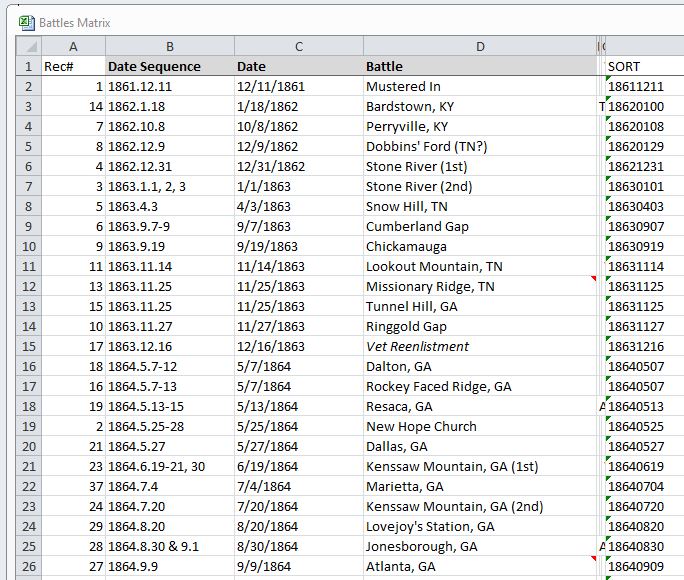
I did not wish to have my Civil War dates in the 1900s, so I dug deeper and found this fix. Since Excel refuses to recognize DATES before 1/1/1900, use simple NUMBERS. For this workaround, the date 12/16/1863 is represented as 18631216. Now Excel is forced to take your date; it doesn’t know it is a date.
Here is how to use this method: For every application involving a date, I use the YYYY.MM.DD format. For example, 1941.12.7, or 1961.7.9, or in the case of a Civil War date, 1863.12.16. This is my standard, but using 12/7/1941, 7/9/1961, or 12/16/1863 works fine too. Any date format that you like can be applied.
First, I create an Excel document and enter data—record #, date, event, etc. Because Excel is not DATE-friendly, we also need a NUMBER column. I label this column as “Sort” and place it to the far right of the Excel page. For me, the number 18631216 doesn’t quickly translate into the date 1863.12.16, 12/16/1863, or even December 16th, 1863 (for you, Purist). However, Excel is required for this application (pre-1/1/1900).
In practical application, I start with my standard YYYY.MM.DD column and cut/paste to a far-right column when all my work is entered. I then painfully remove all the “.” and add “0” before any month or day less than 10. The result is a column of eight numbers per cell. Now, I label this column as “Sort” and try not to look at it. It isn’t lovely, in my humble opinion. Now I sort using the “Sort” column and, if asked, Expand to the entire worksheet. Now my “Dates” are sorted in date order – not under their own power (unfortunately) – and the product works for me.
I’ve read that OpenOffice’s version of the Excel tool does not have this limitation, but I have not tested it yet.





 Aaron Tassin, MLIS